How to Program LEGO MINDSTORMS Robot Inventor with Python
The MINDSTORMS Robot Inventor app was discontinued on October 1, 2026. Here is how to keep programming the 51515 hub in Python with the free Pybricks firmware, with working code for motors, sensors and driving.
Status update, October 2026: LEGO discontinued the MINDSTORMS Robot Inventor app on October 1, 2026, with no further updates or support, and retired the Robot Inventor set itself at the end of 2022. The hub, motors and sensors keep working, and the free, open-source Pybricks firmware keeps them programmable in Python. Every program in this guide is written for Pybricks.
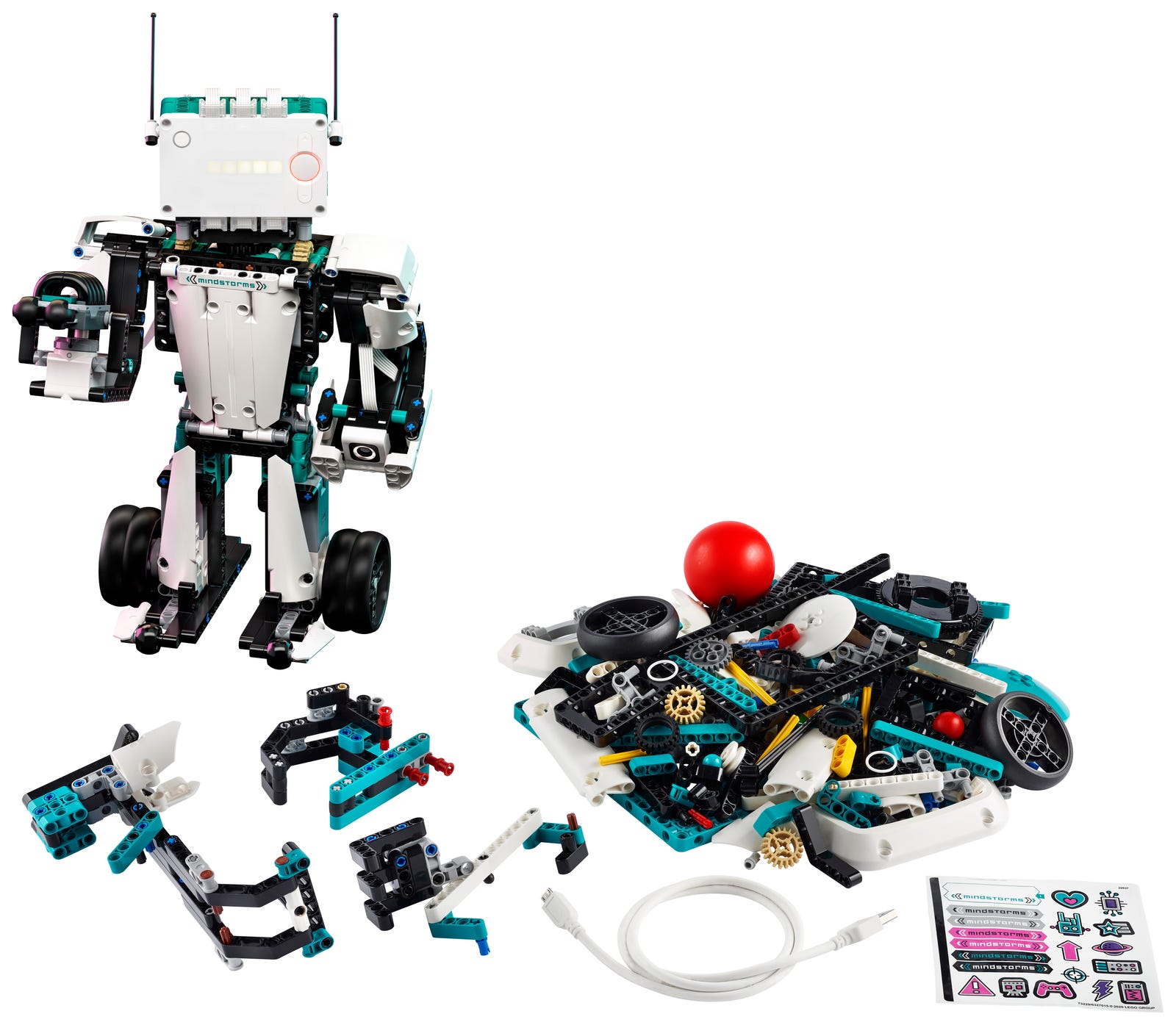
To program a LEGO MINDSTORMS Robot Inventor (51515) hub today, install the free Pybricks firmware from Chrome or Edge at code.pybricks.com, then write Python in the same browser tab and send it to the hub over Bluetooth. LEGO's notice for the discontinued MINDSTORMS app points owners to the LEGO Education SPIKE Prime app, but says a full one-to-one experience cannot be guaranteed. This guide covers the setup, working Pybricks code for the light matrix, gyro, motors, driving, line following, sensors and a simple state machine, and a table for converting programs written in the old app.
Table of Contents
- What Changed for Robot Inventor Owners
- Set Up Pybricks
- Your First Program
- Motors and Driving
- Sensors
- Calibration and State Machines
- Converting Old MINDSTORMS App Programs
- Troubleshooting
What Changed for Robot Inventor Owners
Three dates matter. LEGO retired the Robot Inventor set at the end of 2022, so kits for sale now are remaining stock or secondhand. LEGO discontinued the MINDSTORMS Robot Inventor app on October 1, 2026, with no further updates or support. And LEGO Education ended sales of SPIKE Prime, which is built on the same hub hardware, on June 30, 2026, while promising bug fixes for its SPIKE App until June 30, 2031.
That leaves two ways to keep programming a Robot Inventor hub:
- Pybricks (this guide): free, open-source firmware that replaces the LEGO firmware on the hub. You write Python in a browser, your program runs on the hub itself, and nothing depends on a LEGO app. Block coding is also available to paying Pybricks supporters.
- The LEGO Education SPIKE Prime app: the route LEGO's notice points to. It is built for SPIKE Prime kits, its Python uses a different library from the old MINDSTORMS app, and LEGO says it cannot guarantee a full one-to-one experience, so treat it as a fallback rather than a drop-in replacement.
Set Up Pybricks
Before you start, check that you have:
- A Windows, Mac, Linux, ChromeOS or Android device with Bluetooth. iPads and iPhones will not work, because their browsers lack Web Bluetooth.
- Google Chrome or Microsoft Edge. Firefox and Safari do not support Web Bluetooth.
- A micro USB cable that carries data, not just power, for the one-time firmware install.
- A charged hub battery, so the hub does not switch off partway through.
- Open code.pybricks.com. The Pybricks team keeps current step-by-step instructions on its installation page.
- Start the firmware installer, choose the MINDSTORMS Robot Inventor hub, accept the licenses and give the hub a name.
- Follow the installer's video to put the hub into update mode with the USB cable connected, then leave it alone until the installer says it has finished.
- Connect to the hub over Bluetooth from the editor and run the first program below.
Your First Program: Light Matrix and Sound
In Pybricks the hub is an object you create once, and everything it has built in, from the light matrix to the speaker and gyro, hangs off it. Type this into Pybricks Code and press Run:
from pybricks.hubs import InventorHub
from pybricks.parameters import Icon
from pybricks.tools import wait

hub = InventorHub()

# Scroll a word across the 5x5 light matrix
hub.display.text("HELLO")

# Beep at 262 Hz (middle C) for half a second
hub.speaker.beep(262, 500)
wait(2000)

# Show a built-in picture for two seconds
hub.display.icon(Icon.HAPPY)
wait(2000)
What this does: shows HELLO on the 5x5 light matrix one letter at a time, plays a short middle C, then shows a smiley face. Note the units: beep() takes a frequency in hertz and a duration in milliseconds, and wait() also counts in milliseconds.
Reading the Gyro
from pybricks.hubs import InventorHub
from pybricks.tools import wait

hub = InventorHub()

# Count the heading from 0 starting now
hub.imu.reset_heading(0)

while True:
    heading = hub.imu.heading()   # degrees turned around the vertical axis
    pitch, roll = hub.imu.tilt()  # degrees of forward and sideways tilt
    print("Heading:", heading, "Pitch:", pitch, "Roll:", roll)
    wait(500)
heading() is how far the hub has turned around its vertical axis since the last reset, and tilt() returns pitch and roll together, all in degrees. For the most accurate heading, let the hub sit still for a few seconds before you rely on it; hub.imu.ready() tells you when it has calibrated. Use it for gyro steering, a tilt alarm or a balancing experiment.
Motors and Driving
The Robot Inventor set comes with four motors, and each one has a built-in rotation sensor that Pybricks uses for precise moves. Motor speeds in Pybricks are in degrees per second, not the percentages the MINDSTORMS app used.
from pybricks.pupdevices import Motor
from pybricks.parameters import Port
from pybricks.tools import wait

motor = Motor(Port.A)

# Run at 500 degrees per second for two seconds, then stop
motor.run(500)
wait(2000)
motor.stop()

# Two full rotations (720 degrees) at 400 degrees per second
motor.run_angle(400, 720)

# Go to the 180 degree position at 200 degrees per second
motor.run_target(200, 180)

# How far the motor has turned, in degrees
print("Motor angle:", motor.angle())
run_angle() and run_target() wait for the move to finish and then hold the motor in place, which keeps an arm from drooping after it lifts.
Driving with DriveBase
For a two-wheeled robot, DriveBase replaces the MotorPair moves of the old app. You tell it the size of your wheels and how far apart they are, and then steer in millimeters and degrees:
from pybricks.hubs import InventorHub
from pybricks.pupdevices import Motor
from pybricks.parameters import Port, Direction
from pybricks.robotics import DriveBase

hub = InventorHub()

# The motors face opposite ways, so the left one is reversed
left = Motor(Port.A, Direction.COUNTERCLOCKWISE)
right = Motor(Port.B)

# Measure your own robot: wheel diameter, and the distance between
# the points where the two wheels touch the ground, in millimeters
robot = DriveBase(left, right, wheel_diameter=56, axle_track=112)

# Let the hub's gyro keep the heading on straights and turns
robot.use_gyro(True)

robot.straight(200)   # forward 200 mm
robot.turn(90)        # turn right 90 degrees on the spot
robot.straight(-200)  # back 200 mm
The 56 and 112 values are placeholders. Measure your own wheels and wheel spacing, then adjust the numbers until robot.turn(360) ends exactly where it started. With use_gyro(True), the hub's gyro corrects the heading while the robot drives.
Line Following
from pybricks.pupdevices import Motor, ColorSensor
from pybricks.parameters import Port, Direction
from pybricks.robotics import DriveBase
from pybricks.tools import wait

left = Motor(Port.A, Direction.COUNTERCLOCKWISE)
right = Motor(Port.B)
robot = DriveBase(left, right, wheel_diameter=56, axle_track=112)
sensor = ColorSensor(Port.C)

TARGET = 50        # reflection at the edge of the line: measure your own
KP = 1.2           # degrees per second of turn for each point of error
DRIVE_SPEED = 100  # millimeters per second

# Follows the left edge of a dark line on a light mat
while True:
    error = sensor.reflection() - TARGET
    robot.drive(DRIVE_SPEED, KP * error)
    wait(10)
This is proportional control: the further the reading is from the target, the harder the robot turns. A gain of 1.2 at 100 mm/s is also the starting point the Pybricks documentation uses for its own line follower. Measure your target with the calibration program below, and see the line-following robot tutorial for PID control and tuning.
Sensors
The set's color sensor and distance sensor appear in Pybricks as ColorSensor and UltrasonicSensor, and both report real units:
from pybricks.pupdevices import ColorSensor, UltrasonicSensor
from pybricks.parameters import Port, Color

color_sensor = ColorSensor(Port.C)
distance_sensor = UltrasonicSensor(Port.D)

# By default color() returns Color.RED, YELLOW, GREEN, BLUE, WHITE or NONE
color = color_sensor.color()
if color == Color.RED:
    print("Red object detected")
elif color == Color.BLUE:
    print("Blue object detected")

print("Reflected light:", color_sensor.reflection(), "%")
print("Ambient light:", color_sensor.ambient(), "%")
print("Hue, saturation, value:", color_sensor.hsv())

# Distance in millimeters; 2000 means nothing was detected
print("Distance:", distance_sensor.distance(), "mm")
Watch the "nothing detected" value. The distance sensor returns 2000 mm when it sees nothing, so a check such as distance() < 100 treats an empty view as far away, which is usually what you want.
Obstacle Avoidance
from pybricks.pupdevices import Motor, UltrasonicSensor
from pybricks.parameters import Port, Direction
from pybricks.robotics import DriveBase
from pybricks.tools import wait

left = Motor(Port.A, Direction.COUNTERCLOCKWISE)
right = Motor(Port.B)
robot = DriveBase(left, right, wheel_diameter=56, axle_track=112)
eyes = UltrasonicSensor(Port.D)

while True:
    if eyes.distance() < 100:
        # Something within 10 cm: back up, then turn away
        robot.straight(-50)
        robot.turn(90)
    else:
        robot.drive(150, 0)
    wait(10)
The robot drives forward until something is closer than 100 mm, then backs up and turns away. To make it smarter, turn toward whichever side reads farther away, or slow down as the distance shrinks.
Calibration and State Machines
Calibrating with the Hub Buttons
Every mat and room is a little different, so measure the line follower's target instead of guessing it. Pybricks uses the center button to stop a program by default, so this calibration uses the left and right buttons:
from pybricks.hubs import InventorHub
from pybricks.pupdevices import ColorSensor
from pybricks.parameters import Port, Button
from pybricks.tools import wait

hub = InventorHub()
sensor = ColorSensor(Port.C)


def wait_for_button(button):
    # Wait for the press and then the release, so one press counts once
    while button not in hub.buttons.pressed():
        wait(10)
    while button in hub.buttons.pressed():
        wait(10)


print("Put the sensor over the dark line, then press the left button")
wait_for_button(Button.LEFT)
black = sensor.reflection()

print("Put the sensor over the light mat, then press the right button")
wait_for_button(Button.RIGHT)
white = sensor.reflection()

target = (black + white) // 2
print("Dark:", black, "Light:", white, "Target:", target)
hub.display.text(str(target))
The halfway point between the dark and light readings is the TARGET for the line follower above.
A State Machine for Complex Behaviors
A state machine keeps a multi-step behavior readable: the robot is always in exactly one state, and each state decides when to move on to the next. This one searches for a red object, drives up to it, closes a gripper on port E, backs away and starts again:
from pybricks.hubs import InventorHub
from pybricks.pupdevices import Motor, ColorSensor
from pybricks.parameters import Port, Direction, Color
from pybricks.robotics import DriveBase
from pybricks.tools import wait

hub = InventorHub()
left = Motor(Port.A, Direction.COUNTERCLOCKWISE)
right = Motor(Port.B)
robot = DriveBase(left, right, wheel_diameter=56, axle_track=112)
gripper = Motor(Port.E)
color = ColorSensor(Port.C)

SEARCH, APPROACH, GRAB, RETURN = range(4)
state = SEARCH

while True:
    if state == SEARCH:
        # Turn slowly on the spot until the color sensor sees red
        robot.drive(0, 30)
        if color.color() == Color.RED:
            robot.stop()
            state = APPROACH

    elif state == APPROACH:
        robot.straight(100)
        state = GRAB

    elif state == GRAB:
        # Close the gripper until it meets resistance
        gripper.run_until_stalled(-300, duty_limit=50)
        hub.speaker.beep(440, 200)
        state = RETURN

    elif state == RETURN:
        robot.straight(-100)
        gripper.run_until_stalled(300, duty_limit=50)  # open it again
        robot.turn(180)
        state = SEARCH

    wait(10)
run_until_stalled() turns the gripper motor until it meets resistance, and duty_limit caps the motor's power so the grip stays gentle.
Converting Old MINDSTORMS App Programs
Python written in the MINDSTORMS app used LEGO's mindstorms module, which Pybricks does not include, so old programs fail on their first import line and need rewriting. Most changes are one line at a time:
| Task | MINDSTORMS app | Pybricks |
|---|---|---|
| Set up the hub | hub = MSHub() |
hub = InventorHub() |
| Scroll text | hub.light_matrix.write("HI") |
hub.display.text("HI") |
| Show a picture | hub.light_matrix.show_image('HAPPY') |
hub.display.icon(Icon.HAPPY) |
| Beep |
hub.speaker.beep(60, 0.5) (note number, seconds) |
hub.speaker.beep(262, 500) (hertz, milliseconds) |
| Read the heading | hub.motion_sensor.get_yaw_angle() |
hub.imu.heading() |
| Set up a motor | motor = Motor('A') |
motor = Motor(Port.A) |
| Run a motor |
motor.start(50) (percent) |
motor.run(500) (degrees per second) |
| Turn two rotations | motor.run_for_rotations(2, 75) |
motor.run_angle(500, 720) |
| Go to a position | motor.run_to_position(180, speed=50) |
motor.run_target(200, 180) |
| Drive straight 10 cm | MotorPair('A', 'B').move(10, 'cm', 0, 50) |
robot.straight(100) with a DriveBase |
| Reflected light | color.get_reflected_light() |
color.reflection() |
| Detect red | color.get_color() == 'red' |
color.color() == Color.RED |
| Distance |
get_distance_cm(), None when nothing is seen |
distance() in millimeters, 2000 when nothing is seen |
| Wait for the left button | hub.left_button.wait_until_pressed() |
Loop until Button.LEFT in hub.buttons.pressed()
|
| Pause two seconds | time.sleep(2) |
wait(2000) |
Two differences catch most people out: Pybricks speeds are in degrees per second for motors and millimeters per second for DriveBase, never percentages, and the distance sensor's "nothing there" value is 2000 mm, not None. For a side-by-side look at the official SPIKE App's Python, see Pybricks vs LEGO Firmware.
Troubleshooting
The installer never finds the hub
- Try a different micro USB cable: some cables only carry power.
- Follow the button sequence in the installer video exactly, with the cable connected.
- Charge the hub battery before you try again.
Pybricks Code cannot connect over Bluetooth
- Check that Bluetooth is switched on and the hub is powered.
- Close any other app that might still be connected to the hub.
- Use Chrome or Edge, not Firefox or Safari.
The program stops when I press the center button
- That is the default stop button in Pybricks.
hub.system.set_stop_button()changes it if your robot needs the center button for something else.
The robot spins in place or drives backward
- Check which motor is reversed with
Direction.COUNTERCLOCKWISE, and that the left and right motors are on the ports your program expects.
Learning Resources
- Pybricks documentation, with every class and its units
- Pybricks projects for the Robot Inventor set
- Anton's MINDSTORMS tutorials
- LEGO's reference for the hub's low-level hub module, useful for reading older programs written against it
Next Steps: Project Ideas
Once the examples above run, try the 10 Beginner Python Projects for LEGO MINDSTORMS and SPIKE, which build up from the light matrix to a robotic arm and a Bluetooth game controller. Other good next projects:
- Maze solver: follow one wall with the distance sensor until you reach the exit
- Color sorter: detect each colored part and push it into its own bin
- Faster line follower: add the integral and derivative terms from the line-following tutorial
- Browser remote control: drive a Powered Up hub, such as the Technic Hub, from a web page with the Web Bluetooth LEGO controller guide
Buying the hardware in 2026: LEGO retired MINDSTORMS Robot Inventor at the end of 2022, so you will be looking at remaining stock or secondhand kits. If you buy secondhand, check that the hub, its battery, all four motors and both sensors are included.
Use Our Tools to Go Further
Get more insights about the sets mentioned in this article with our free LEGO tools