LEGO Robot PID Control: SPIKE and MINDSTORMS with Pybricks
Supporting Free Content
As an Amazon Associate I earn from qualifying purchases. As an eBay Partner, we earn from qualifying purchases at no extra cost to you. We also earn a commission when you buy from Wicked Brick or BRKOX through our links (Awin). When you purchase through our links, that small commission helps us keep bringing you expert LEGO® reviews and guides. Thank you for your support!
How to get smooth, precise motor control on SPIKE Prime, MINDSTORMS Robot Inventor and Technic hubs in 2026 with Pybricks, from built-in motor commands and acceleration limits to a tuned line follower and synchronized motors.
For smooth, precise motor control on a SPIKE Prime, MINDSTORMS Robot Inventor, SPIKE Essential or Technic hub in 2026, use Pybricks. Its motors already run their own control loop, so precise moves need only the right command; your own PID is for the outer task, such as following a line or holding a heading. The code below uses the Pybricks API as its documentation describes it.
Status, October 2026: LEGO Education stopped selling SPIKE Prime and SPIKE Essential on June 30, 2026 and supports the SPIKE App until June 30, 2031. The MINDSTORMS Robot Inventor app was discontinued on October 1, 2026, and the Robot Inventor set retired in 2023. The hubs, motors and sensors keep working, and Pybricks keeps them programmable.
Setting up Pybricks
Pybricks is open-source firmware and a browser editor for LEGO hubs. It supports the SPIKE Prime hub, the MINDSTORMS Robot Inventor hub (identical to the SPIKE Prime hub apart from its color), the SPIKE Essential hub, the Technic Hub, the City Hub and the BOOST Move Hub. Open code.pybricks.com in Chrome or Edge, which can talk to the hub over Bluetooth; SPIKE and Robot Inventor hubs also need their micro-USB cable to install the firmware the first time.
Each hub has its own class: PrimeHub, InventorHub, EssentialHub and TechnicHub among them. The examples use PrimeHub; on a Robot Inventor hub, use InventorHub instead.
Let the motor do the low-level work
A Pybricks motor already runs a feedback controller that holds speed and position, so the precise way to move it is to ask for the result you want:
from pybricks.pupdevices import Motor
from pybricks.parameters import Port, Stop

arm = Motor(Port.A)

arm.run_target(500, 90)                    # turn to 90 degrees at 500 deg/s and hold there
arm.run_angle(300, -180, then=Stop.BRAKE)  # turn back 180 degrees, then brake
print(arm.angle())                         # current angle in degrees
The motor's own PID settings are available as control.pid, but the defaults are tuned for LEGO's motors and rarely need changing.
Gentler acceleration
Sudden starts make wheels slip and arms overshoot. Read the motor's current limits, then set a lower acceleration while keeping the speed and torque limits:
speed, acceleration, torque = arm.control.limits()
arm.control.limits(speed, acceleration // 2, torque)
For a two-wheeled robot, the DriveBase class handles both motors together, in millimeters and degrees:
from pybricks.hubs import PrimeHub
from pybricks.pupdevices import Motor
from pybricks.parameters import Port, Direction
from pybricks.robotics import DriveBase

hub = PrimeHub()
left = Motor(Port.A, Direction.COUNTERCLOCKWISE)
right = Motor(Port.B)

# Measure your own robot: wheel diameter and the distance between the wheels, in mm.
robot = DriveBase(left, right, wheel_diameter=56, axle_track=112)
robot.settings(straight_speed=200, straight_acceleration=300,
               turn_rate=120, turn_acceleration=240)

robot.straight(500)   # drive 500 mm
robot.turn(90)        # turn 90 degrees in place
On hubs with a built-in gyro, such as SPIKE Prime and the Robot Inventor hub, robot.use_gyro(True) lets the drive base use it to hold its heading.
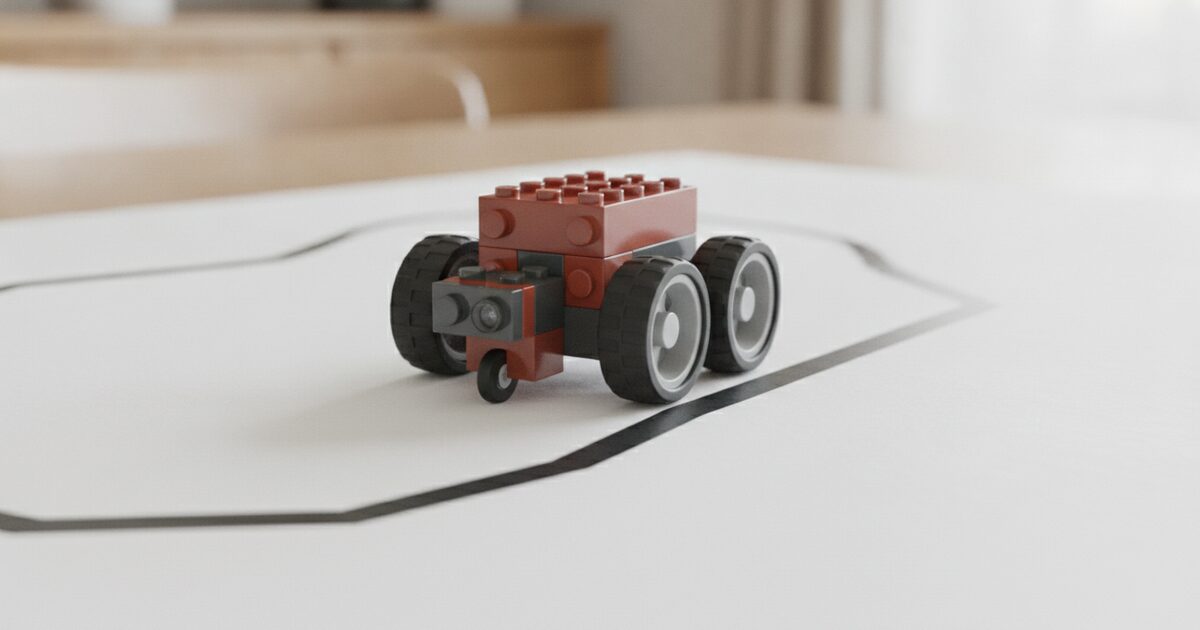
A PD line follower
Line following is where your own controller belongs. The color sensor's reflection value runs from 0 to 100 percent; the target is the value it reads on the edge of the line, halfway between the line and the mat. The error is how far the reading is from that target, and the turn rate is proportional to the error (P) plus its change since the last loop (D):
from pybricks.hubs import PrimeHub
from pybricks.pupdevices import Motor, ColorSensor
from pybricks.parameters import Port, Direction
from pybricks.robotics import DriveBase
from pybricks.tools import wait

hub = PrimeHub()
left = Motor(Port.A, Direction.COUNTERCLOCKWISE)
right = Motor(Port.B)
robot = DriveBase(left, right, wheel_diameter=56, axle_track=112)
sensor = ColorSensor(Port.C)

# Measure these on your own mat: reflection on the line and on the mat.
LINE = 10
MAT = 90
TARGET = (LINE + MAT) // 2

SPEED = 120   # mm/s
KP = 1.0      # starting values; tune them for your robot
KD = 0.0

last_error = 0
while True:
    error = sensor.reflection() - TARGET
    turn_rate = KP * error + KD * (error - last_error)
    robot.drive(SPEED, turn_rate)
    last_error = error
    wait(10)
If the robot turns away from the line instead of following its edge, change the sign of the turn rate or follow the other edge.
Tuning it
- Proportional first. With KD at 0, raise KP until the robot follows the line but starts to wobble from side to side.
- Then derivative. Raise KD until the wobble settles. Derivative reacts to how fast the error changes, so it damps the overshoot that proportional control causes.
- Integral last, if at all. Add a small integral term only if the robot keeps sitting off to one side of the target; too much makes it overshoot.
- Retune for changes. The right gains depend on speed, wheel size and the mat, so tune again when any of them changes. Raise speed only after the follower is steady.
Two motors that finish together
To make two motors finish a move at the same moment, give each a speed proportional to the angle it has to turn, start both without waiting, then wait for both:
from pybricks.pupdevices import Motor
from pybricks.parameters import Port
from pybricks.tools import wait

lift = Motor(Port.C)
tilt = Motor(Port.D)

# 720 degrees at 400 deg/s and 360 degrees at 200 deg/s both take 1.8 seconds.
lift.run_angle(400, 720, wait=False)
tilt.run_angle(200, 360, wait=False)

while not (lift.done() and tilt.done()):
    wait(10)
Gears and stalls
If a motor drives a mechanism through gears, tell Pybricks the gear teeth so angles and speeds refer to the output instead of the motor shaft. For a 12-tooth gear on the motor driving a 36-tooth gear:
arm = Motor(Port.A, gears=[12, 36])
arm.run_target(100, 45)   # 45 degrees of the output, not the motor
A mechanism that hits its end stop will stall. Check motor.stalled() in your loop and stop or reverse, instead of pushing against the stop.
Hardware
SPIKE Prime and Robot Inventor hubs are now found secondhand. The Technic Hub and Powered Up motors are still listed by LEGO in our data, and Pybricks supports them, which makes them the new route into programmable LEGO motors. Our guide to the best LEGO sets for learning programming covers what to buy.
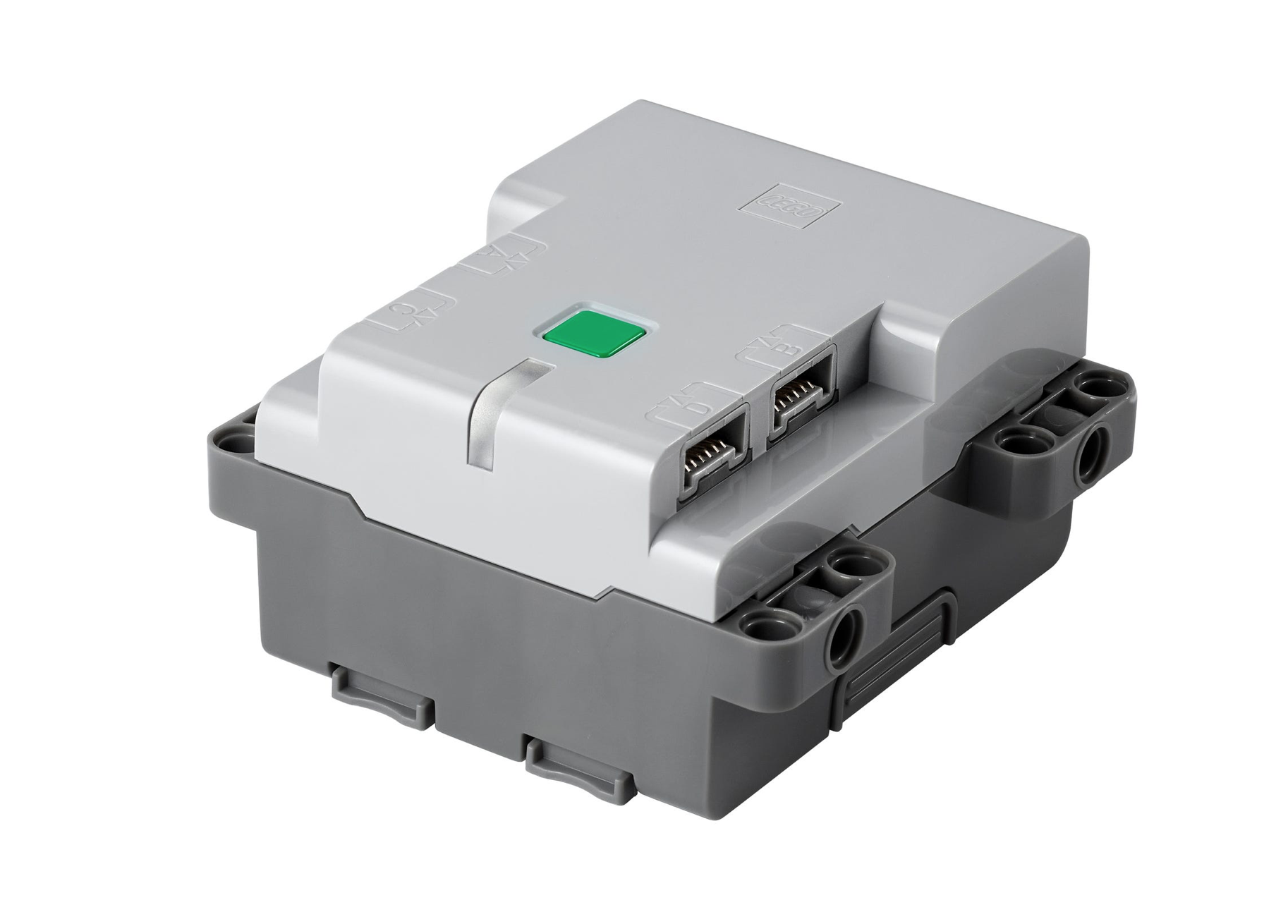
The Powered Up Technic Hub, programmable with Pybricks, with four ports for motors and sensors.
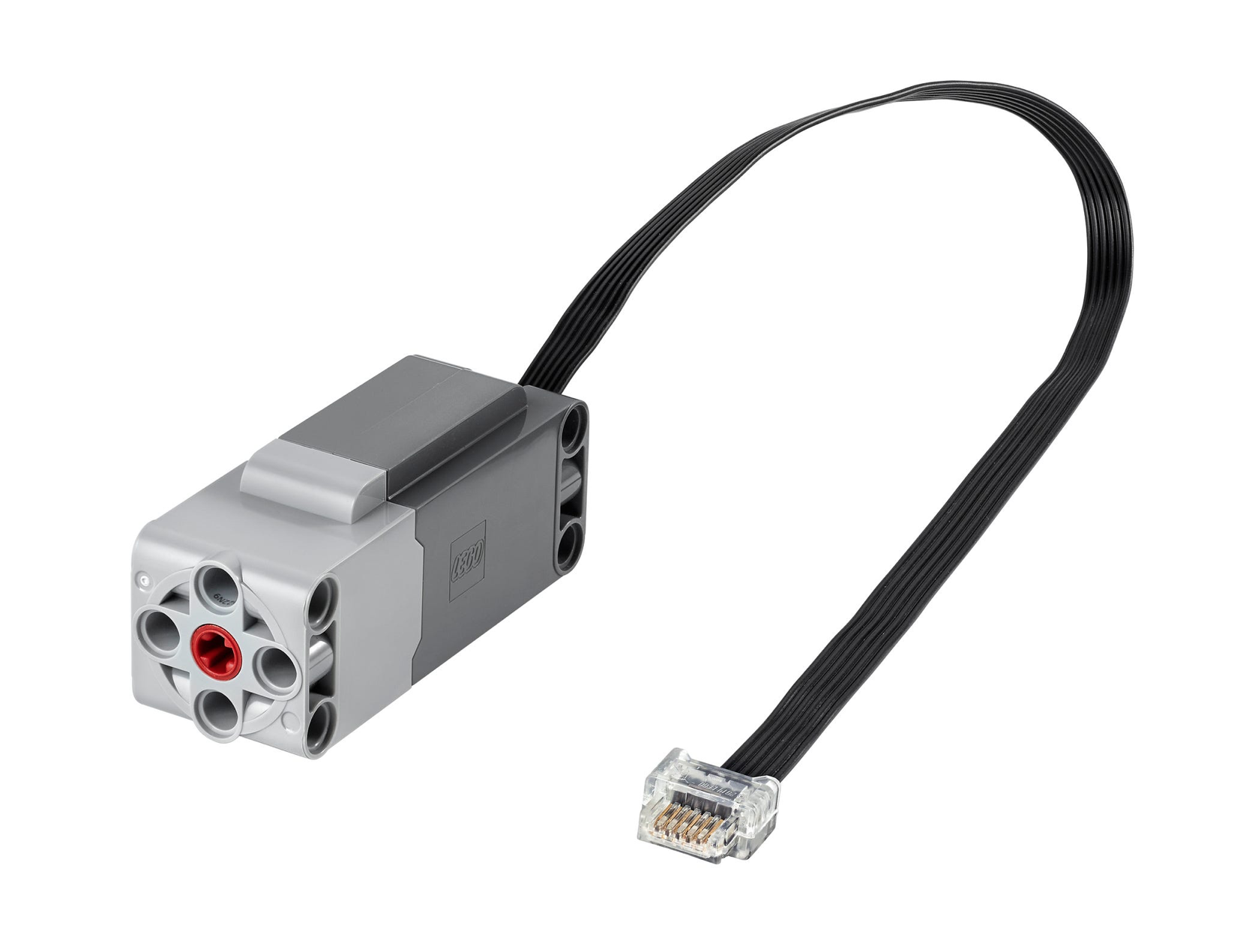
A Powered Up Technic Large Motor with a built-in rotation sensor, which is what makes precise moves possible.
Use Our Tools to Go Further
Get more insights about the sets mentioned in this article with our free LEGO tools