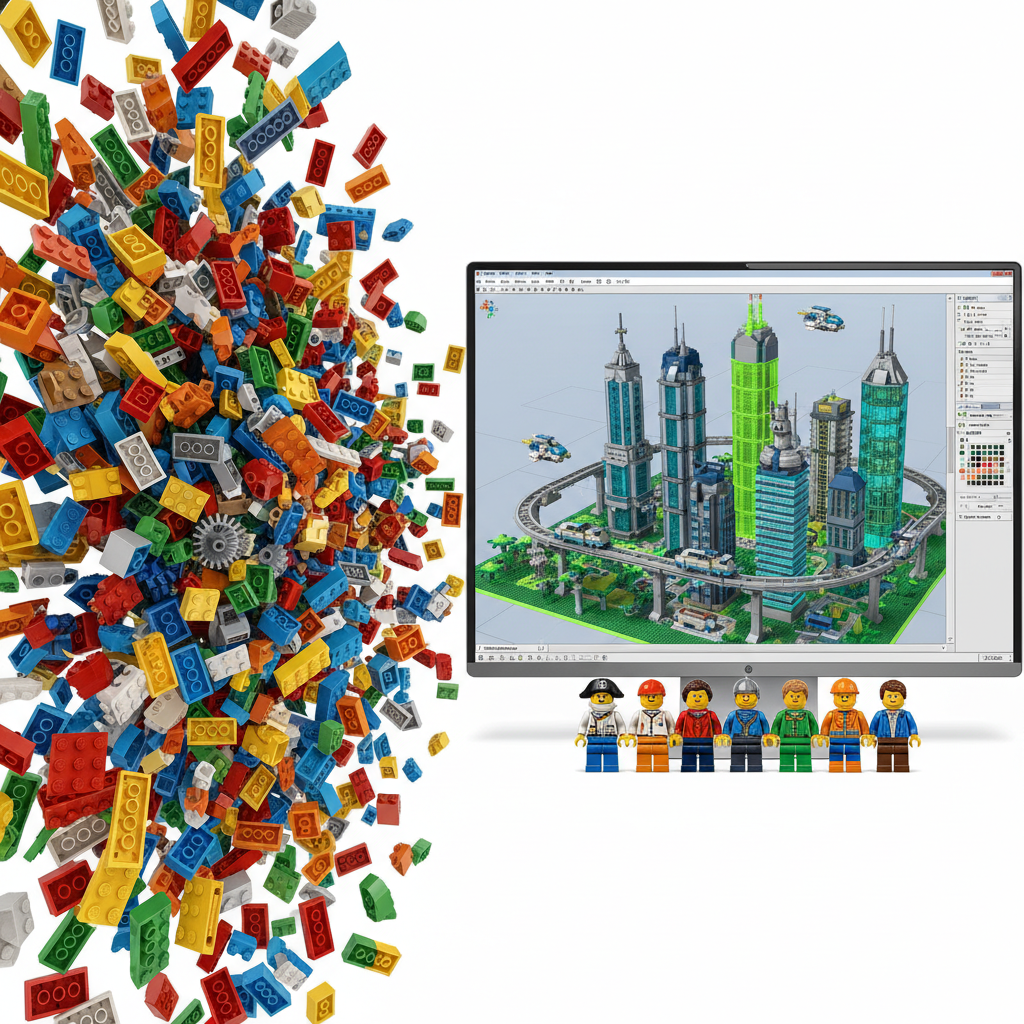
LDraw is a free, open-source computer-aided design (CAD) software system that allows LEGO enthusiasts to build virtual LEGO models on their computer. It's a powerful and versatile tool for designing custom creations (MOCs, or My Own Creations), planning complex builds, generating building instructions, and visualizing existing sets digitally before or during construction. This comprehensive guide will walk you through everything you need to know to get started with LDraw, from installation to advanced techniques, helping you unlock a new dimension of LEGO creativity.

Unleashing Your Imagination: What is LDraw and Why Use It?

For decades, LEGO building has been a tactile experience, a joy of snapping plastic bricks together. But what if you could design your dream LEGO model without needing a single physical brick? What if you could plan intricate structures, experiment with rare colors, or even create professional-grade building instructions from the comfort of your computer? That's where LDraw comes in. It's not just a program; it's an entire ecosystem of software tools built around a standardized library of virtual LEGO parts.

What Exactly is LDraw?

LDraw stands for "LEGO DRAW" and refers to both the file format (.ldr or .mpd) and the vast collection of digital LEGO part files. The core LDraw system consists of:

  • The LDraw Parts Library: A continuously updated, community-maintained collection of nearly every LEGO part ever manufactured, available in various colors. As of early 2024, this library contains tens of thousands of unique parts.
  • LDraw.org: The official hub for the LDraw community, offering downloads, documentation, and forums.
  • LDraw Compatible Software: A suite of programs that use the LDraw parts library and file format. These include:
    • Bricksmith (macOS) / MLCad (Windows): Core editors for building models.
    • LeoCAD (Cross-platform): A user-friendly alternative editor.
    • LDCad (Cross-platform): A more advanced editor with features like collision detection.
    • LPub3D (Cross-platform): For generating high-quality building instructions.
    • POV-Ray (Cross-platform): A ray-tracing renderer used in conjunction with LDraw for photorealistic images.

Why Should You Embrace Digital LEGO Building?

The benefits of using LDraw are immense, especially for dedicated LEGO fans (AFOLs - Adult Fans of LEGO) and those looking to push their creative boundaries:

  • Unlimited Parts & Colors: Forget hunting for that rare dark blue 1x1 plate! In LDraw, you have access to virtually every LEGO part in every color ever produced, right at your fingertips. This is invaluable for planning complex builds like the Modular LEGO Store (which you can design digitally with ) or large-scale mosaics such as the Lego Mosaic Dino.
  • Cost-Effective Prototyping: Experiment with designs and color schemes without spending a penny on bricks. This saves money and prevents "part regret" before you commit to purchasing physical elements.
  • Error Checking & Stability: LDraw tools can help you identify structural weaknesses or illegal connections (parts that don't quite fit physically) before you build.
  • Instruction Generation: Create professional, step-by-step building instructions for your MOCs using tools like LPub3D, making it easy to share your creations with others or re-build them later.
  • Visualization & Rendering: Generate stunning, photorealistic images of your digital models using renderers like POV-Ray. Imagine showing off your custom built Lego Dragon or a grand structure like the LEGO Campus in breathtaking detail.
  • Easy Sharing: Share your LDraw files with a global community of builders, allowing others to view, modify, and even build your designs.
  • Digital Inventory Management: Keep a precise digital record of your MOCs.

Getting Started: Installing LDraw and Your First Editor

Diving into LDraw begins with setting up the core software. The easiest way for Windows users is to download the "All-in-one" installer. For Mac and Linux users, individual component downloads are necessary.

Step-by-Step Installation Guide (Windows)

  1. Download the All-in-one Installer: Visit the official LDraw.org website and navigate to the Downloads section. Look for the latest "All-in-one Installer" package. This typically includes the LDraw Parts Library, MLCad (a popular editor), LPub3D (for instructions), and other essential utilities.
  2. Run the Installer: Double-click the downloaded executable file. Follow the on-screen prompts.
  3. Choose Components: During installation, you'll likely be given options to select which LDraw-compatible software to install. For beginners, it's recommended to install MLCad, LPub3D, and the full LDraw Parts Library.
  4. Installation Path: The default installation path is usually fine. Make a note of it if you want to access the LDraw folder later.
  5. Complete Installation: Once the installation finishes, you're ready to launch your chosen editor.

Choosing Your First Editor: MLCad vs. LeoCAD vs. LDCad

While the LDraw system is unified by its part library, you have choices for the primary building interface:

  • MLCad (Windows): Often included in the all-in-one installer, MLCad is a classic LDraw editor. It has a slightly older interface but is incredibly powerful and has a vast user base. It's a great starting point.
  • LeoCAD (Cross-platform - Windows, macOS, Linux): This is an excellent choice for beginners, especially Mac and Linux users. LeoCAD offers a more modern, intuitive interface and a smooth learning curve. It's great for quickly assembling models.
  • LDCad (Cross-platform - Windows, macOS, Linux): For users seeking advanced features like collision detection, flexible part snapping, and a highly customizable interface, LDCad is a top contender. It has a steeper learning curve but offers unmatched precision and control, ideal for complex MOCs or recreating detailed sets like the PAC-MAN Arcade.

We recommend starting with LeoCAD for its ease of use, and then exploring MLCad or LDCad as your skills grow.

Building Your First Digital LEGO Model: A Step-by-Step Guide with LeoCAD

Let's get hands-on! We'll use LeoCAD for this basic tutorial, but the principles apply to other editors.

  1. Launch LeoCAD: Open the program. You'll see a 3D workspace, a parts palette, and various toolbars.
  2. Add Your First Part:
    • On the left-hand side, you'll see the parts palette. It's organized into categories (e.g., "Bricks," "Plates," "Technic").
    • Expand a category, for example, "Bricks."
    • Click and drag a "Brick 2x4" into the main 3D view.
  3. Manipulate the Part:
    • Move: Click and drag the part. You can also use the arrow keys for fine adjustments.
    • Rotate: Select the part. You'll see rotation handles appear (usually colored axes). Click and drag these handles to rotate the part along different axes. Alternatively, use the rotation tools in the toolbar.
    • Duplicate: Select the part and press Ctrl+D (Cmd+D on Mac) or use the duplicate tool.
  4. Add More Parts and Connect Them:
    • Drag another "Brick 2x4" into the workspace.
    • Position it directly above your first brick. LeoCAD, like most LDraw editors, has a "snap" feature that helps parts align correctly. You'll see them snap into place.
    • Continue adding bricks to build a simple wall or tower. Try using different sizes like "Brick 1x2" or "Plate 2x2."
  5. Change Part Color:
    • Select one or more parts.
    • In the toolbar or properties panel, find the color selector (often a paint bucket icon).
    • Choose a new color from the extensive LDraw color palette. For instance, you could build a colorful structure like the Bonus Lego Basic Town.
  6. Organize with Steps and Submodels:
    • Steps: To create building instructions, you'll need to separate your model into steps. In LeoCAD, you can insert a "New Step" marker. All parts added after this marker will belong to the next step.
    • Submodels: For complex assemblies (like a car engine or a unique head for a minifigure), create a submodel. Select the relevant parts, go to the "Model" menu, and choose "New Submodel from Selection." This helps manage complexity, especially when working on intricate designs like a Lego Minifigure sculpture.
  7. Save Your Work: Go to "File" > "Save As" and save your model as an .ldr or .mpd file.

Advanced LDraw Techniques and Tools for Master Builders

Once you're comfortable with the basics, LDraw offers a wealth of advanced features to elevate your digital building experience. These are crucial for creating truly impressive MOCs or meticulously recreating sets like the Giant Lego Topic Set.

Mastering Sub-Models for Complex Assemblies

Sub-models are essential for managing complexity. Think of them as smaller, self-contained LEGO builds within your larger model. For example, if you're designing a Modular Building, each floor or even intricate furniture pieces could be a sub-model. This not only keeps your main file organized but also makes it easier to re-use sections and generate clearer instructions.

Generating Professional Building Instructions with LPub3D

LPub3D is the gold standard for creating LEGO-style instructions from your LDraw models. It takes your .ldr or .mpd file, interprets your steps and sub-models, and generates high-quality PDF or HTML instructions complete with callouts, part lists, and rotation steps. It's an indispensable tool for sharing your custom designs with others, much like the instructions you'd find in an official LEGO set.

Photorealistic Rendering with POV-Ray

To truly showcase your digital creations, you'll want to render them. POV-Ray (Persistence of Vision Raytracer) is a powerful, free ray-tracing program that integrates seamlessly with LDraw. By exporting your LDraw model (often via an intermediate program like LDView), you can use POV-Ray to apply realistic lighting, shadows, reflections, and textures, turning a simple digital model into a stunning, photorealistic image. Imagine a rendered image of a detailed model like the LEGO Chess set!

Custom Parts and the LDraw Community

While the LDraw Parts Library is incredibly comprehensive, sometimes you might need a custom part. The LDraw community is active in creating and submitting new parts. You can learn to create your own custom parts using specialized LDraw tools, expanding the possibilities of your digital builds even further. Engaging with the community forums on LDraw.org is a fantastic way to learn, share, and get help.

Integrating LDraw with the Physical World: From Digital Design to Real Bricks

The ultimate goal for many digital builders is to transform their virtual creations into tangible LEGO models. LDraw tools facilitate this transition beautifully.

Creating Part Lists and Sourcing Bricks

Once your digital design is complete, LDraw-compatible software can generate a comprehensive part list (BOM - Bill of Materials). This list specifies every brick needed, its color, and quantity. You can then use this information to source bricks through various channels:

  • BrickLink: The largest online marketplace for LEGO parts, sets, and minifigures. You can often upload your LDraw part list directly to BrickLink's Wanted List feature, which helps you find sellers with the required bricks.
  • LEGO Pick a Brick: LEGO's official online service for ordering individual bricks. While it might not have every part, it's great for common elements.
  • Your Own Collection: Use your digital part list to see what you already have in your physical collection, saving you money on purchases. For large universal building sets like the Giant Lego Dacta Basic Set, having a digital inventory can be a huge advantage.

Digital Planning for Physical Builds

LDraw is invaluable for planning complex physical builds. Before embarking on a massive MOC, you can build it digitally first to:

  • Test Stability: Ensure your structure is sound and won't collapse.
  • Optimize Part Usage: Find more efficient ways to build sections, potentially reducing the number of unique parts needed.
  • Experiment with Color Schemes: Try out different color palettes without committing to buying expensive bricks. This is especially useful for highly detailed models like the LEGO Inside Tour Anniversary Collection or the The LEGO Story.
  • Anticipate Challenges: Identify tricky connections or difficult-to-reach areas during the digital phase, making the physical build smoother.

LDraw for Specific Builds: Mosaics and Iconic Creations

LDraw's precision and extensive part library make it perfect for various specialized LEGO building types.

Designing Stunning Mosaics

Mosaic building, which involves creating images from many small LEGO plates (often 1x1, 1x2, or round plates), benefits immensely from LDraw. You can import images into some LDraw tools or external programs and then manually or semi-automatically convert them into LEGO mosaic designs. This allows for pixel-perfect planning of creations like the Lego Mosaic Cat, Lego Mosaic Johnny Thunder, or the vibrant Lego Mosaic Dino. The ability to easily swap colors and quickly count parts is a game-changer.

Recreating Beloved Sets and MOCs

Whether you're looking to digitally preserve an out-of-production set like the LEGO Factories National Animals or design an alternative build for a popular set, LDraw is your tool. Many builders use LDraw to recreate iconic sets like the LEGO Star Wars UCS Millennium Falcon or the Modular Buildings line. This practice helps hone your digital building skills and gives you a deeper understanding of official LEGO design principles. It's also fantastic for planning modifications or expansions for sets you already own, such as adding extra details to your LEGO City Fire Station or personalizing your Hogwarts Castle.

Quick Comparison of Digital LEGO Building Project Types

Here's a look at how different LEGO creations can be approached with LDraw, featuring some of our recommended products:

Project Type Recommended Product Example Complexity in LDraw Key LDraw Benefits Best For
Mosaics & Art Lego Mosaic Dino Medium to High (color mapping, precise placement) Precise color selection, part counting, visual preview, instruction generation. Artists, detail-oriented builders, those planning large display pieces.
Sculptures & Figures Lego Minifigure Medium to High (organic shapes, unique connections) Experimenting with angles, sub-models for articulation, rendering lifelike images. Creative sculptors, character designers, those exploring advanced building techniques.
Modular Buildings & Architecture Modular LEGO Store High (intricate details, multiple floors, interior/exterior) Planning floor layouts, testing structural integrity, generating detailed instructions for sub-assemblies. Architectural enthusiasts, city builders, those who love complex, realistic models.
Functional Models & Vehicles PAC-MAN Arcade High (mechanisms, specific part interaction) Testing gear ratios, visualizing movement, ensuring part clearance, creating step-by-step assembly guides. Technic fans, engineers, those interested in how LEGO models work.
Universal Building Sets Bonus Lego Basic Town Low to Medium (focused on freeform creation) Infinite supply of basic bricks, trying out different structures, simple instruction making for custom builds. Beginners, educators, those who enjoy unconstrained creative building.

What to Consider When Diving into LEGO CAD Software

Before you fully commit to the world of LDraw, keep a few practical considerations in mind:

  • Learning Curve: While LDraw itself is free, mastering its various tools (editor, instruction generator, renderer) takes time and practice. Be patient, start with simple projects, and utilize the vast online tutorials and community support.
  • Computer Specifications: For basic building, most modern computers will suffice. However, if you plan to build massive models with tens of thousands of parts or render photorealistic images, a computer with a strong processor, ample RAM (16GB+), and a dedicated graphics card will significantly improve performance.
  • Time Commitment: Designing digitally can be just as time-consuming, if not more so, than physical building. Expect to spend hours refining your models, especially when learning new techniques or creating complex MOCs.
  • Community Engagement: The LDraw community is one of its greatest assets. Engaging with forums, sharing your work, and asking questions will accelerate your learning and provide valuable inspiration.
  • Alternative Software: While LDraw is open-source and free, other commercial LEGO CAD software exists (e.g., BrickLink Studio). While they offer different interfaces and features, LDraw's vast part library and instruction generation capabilities remain unparalleled for many AFOLs.

Conclusion

LDraw is more than just a piece of software; it's a gateway to limitless LEGO creativity. From designing intricate MOCs like the LEGO Ideas creations to meticulously planning massive builds or even generating professional instructions for your custom Lego Dragon, the LDraw ecosystem empowers you to bring your wildest brick-built visions to life digitally. While it requires a bit of dedication to learn, the rewards of having an infinite digital parts bin and powerful design tools at your fingertips are immeasurable. So, download an editor, grab some virtual bricks, and start building—the only limit is your imagination!

Unlock endless LEGO creativity with LDraw! This complete guide covers installation, essential tools, advanced techniques, and how to design stunning digital models and instructions for your custom MOCs.

LDraw, LEGO CAD, digital LEGO, MOC, building instructions, MLCad, LeoCAD, LDCad, LPub3D, virtual LEGO, LEGO software, BrickLink Studio alternative

LDraw is a free, open-source CAD software for building virtual LEGO models. Learn how to install LDraw, use essential tools, design custom creations (MOCs), generate building instructions, and visualize LEGO sets digitally. This guide covers everything from beginner steps to advanced techniques.

Q: What is the difference between LDraw and BrickLink Studio?
A: LDraw is an open-source standard and ecosystem of tools, while BrickLink Studio is a commercial, free-to-use software by BrickLink (owned by LEGO). LDraw offers a vast, community-maintained part library and robust instruction generation, while Studio provides a more integrated, user-friendly interface with direct BrickLink marketplace integration.

Q: Is LDraw difficult to learn for a beginner?
A: Like any CAD software, LDraw has a learning curve. However, starting with a user-friendly editor like LeoCAD and utilizing online tutorials and community support can make the learning process smoother and more accessible for beginners.

Q: Can I create building instructions for my own LEGO models using LDraw?
A: Yes, LDraw is excellent for generating high-quality building instructions. Using a program like LPub3D, you can create professional, step-by-step instructions that resemble official LEGO instruction booklets, complete with part callouts and rotation steps.

Q: Where can I get the LDraw parts library?
A: The official LDraw Parts Library is available for free download from LDraw.org. It's usually included in the "All-in-one" installer for Windows, or downloaded separately for macOS and Linux users.

Q: Can LDraw help me find specific LEGO parts for my MOCs?
A: Yes, LDraw can generate a Bill of Materials (BOM) or part list for your digital design. This list can then be used to efficiently search for individual bricks on online marketplaces like BrickLink or LEGO's Pick a Brick service for your physical build.

Q: Is LDraw compatible with Mac or Linux?
A: Yes, LDraw is cross-platform. While the all-in-one installer is for Windows, many LDraw-compatible editors and tools like LeoCAD and LDCad have native versions for macOS and Linux, and the core LDraw Parts Library is universally compatible.

Q: Can I import existing LEGO set designs into LDraw?
A: Yes, many official LEGO sets have been digitally recreated by the LDraw community and are available as LDraw files (.ldr or .mpd) from repositories like Rebrickable, allowing you to study, modify, or base new creations on them.